To see any of the 60,000+ PHOTOS in the Fingerboard photo library, click the PHOTOS link. The most recent albums are show below. Just click to see the photos.


To see any of the 200+ VIDEOS in the Fingerboard video library, click the video link. The most recent videos are shown below. Just click to watch.

Instructions For Using OneDrive  ... Fingerboard photos and videos are stored on OneDrive, which has its own interface. Just click the PHOTO or VIDEO button above to be taken to OneDrive. With photos, you will need to open the folders and albums until you get to the pictures you want. You can use the side arrows to go through the photos or use the download button to copy the photo to your device for printing, social media, or local storage. With videos, just click on the video file you want and watch using its built-in controls. The video files are huge so you probably don't want to download them. With both photos and videos, just click the Fingerboard tab in your browser to return to the website.
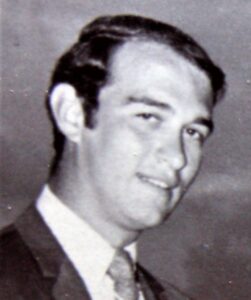
 Spouting off proved to be great therapy for frustration, political and otherwise. Here, I can write about anything, and feel as if I've had my say. This also solved the problem of sparse viewship -- the site now had a personal use. Don't get me wrong, I'm happy to have visitors, and even happier if they find something of value here. I just don't fret about it anymore. As Ann Landers said, "At age 20, we worry about what others think of us. At age 40, we don't care what they think of us. At age 60, we discover they haven't been thinking of us at all." I would add that at age 80, we're just happy that we can still have worries, cares, and discoveries. By the way, the pictures are me at 20 and 80.